If you work with a marketing agency, a freelancer, or even just a colleague who helps with your online presence, they will sooner or later ask for access to your Google Business Profile. It is a fair request. Your profile is one of the most valuable free tools for local visibility in the UK, and keeping it optimised takes regular attention.
The wrong way to do this is to email someone your Google password. The right way takes about two minutes, keeps your account secure, and lets you remove access just as quickly if you ever need to.
Here at Mushy Media, we manage Google Business Profiles for clients all the time, so we have put together this quick guide to show you exactly how it works.
First, understand the different user roles.
Before you invite anyone, it helps to know what level of access you are actually giving them. Google keeps it simple with two main roles:
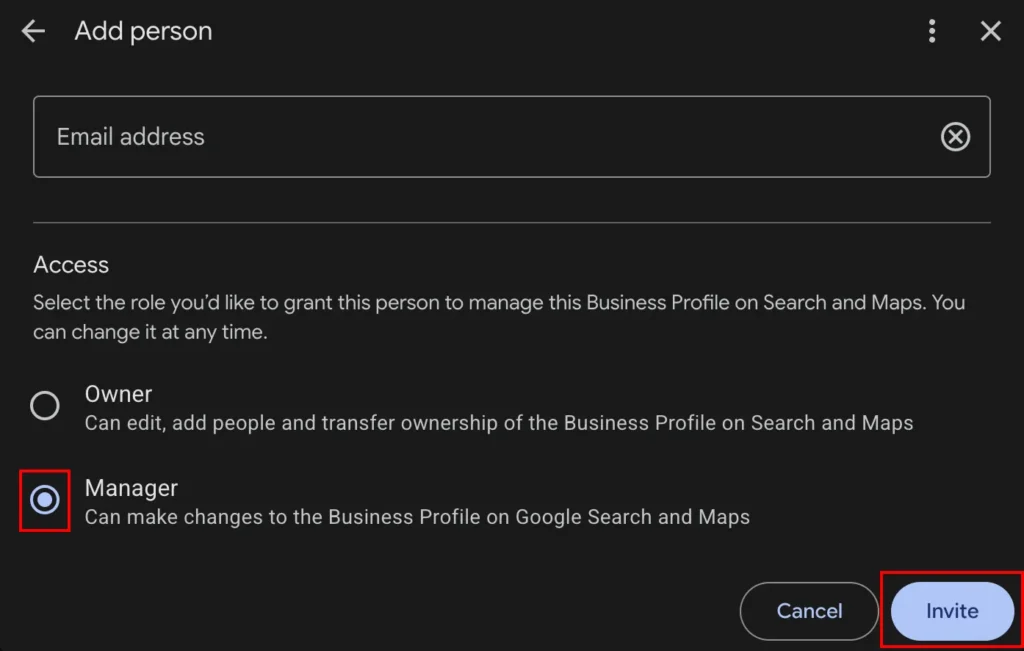
Owner: Owners have full control of the profile. They can edit everything, manage listings, and crucially, add or remove other users. Every profile needs at least one owner, and you should always keep yourself as the primary owner even when working with an agency.
Manager: Managers can do almost everything an owner can. They can update business information, publish posts, respond to reviews, upload photos and view performance data. What they cannot do is delete the profile or manage other users.
For most agency relationships, Manager access is sufficient. If your agency asks for Owner access, that is not unusual either, particularly if they need to manage multiple team members on your profile, but it is worth understanding what you are agreeing to.
Step by step: how to add a user
The process is the same whether you are on desktop or mobile, since Google now manages everything directly through Search and Maps rather than a separate dashboard.
1.
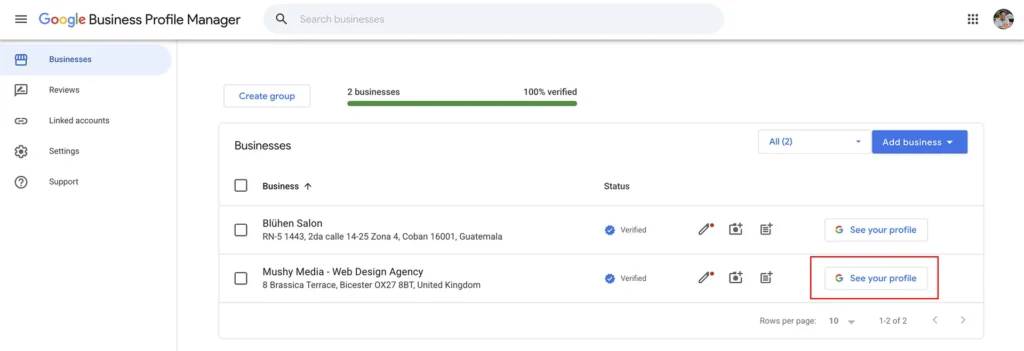
Sign in to your Google account. Use the account that owns your Business Profile, then head to business.google.com or simply search for your business name on Google while signed in.
2.
Open your profile. If you manage more than one location, pick the one you want to share first. You will need to repeat these steps for each location, as access is granted per profile rather than across your whole account.
3.
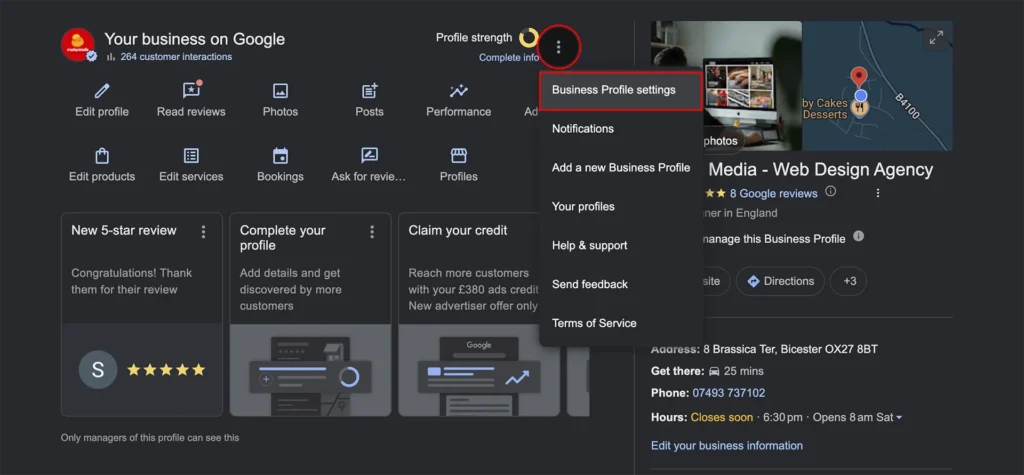
Open the settings menu. Click the three dots to expand the menu, then choose Business Profile Settings
4.
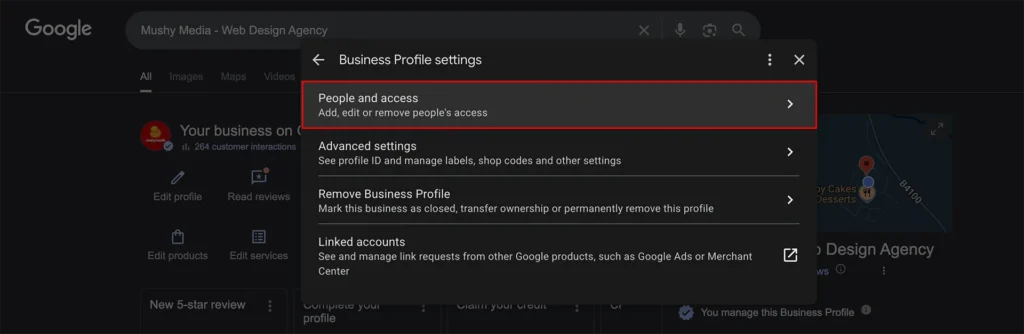
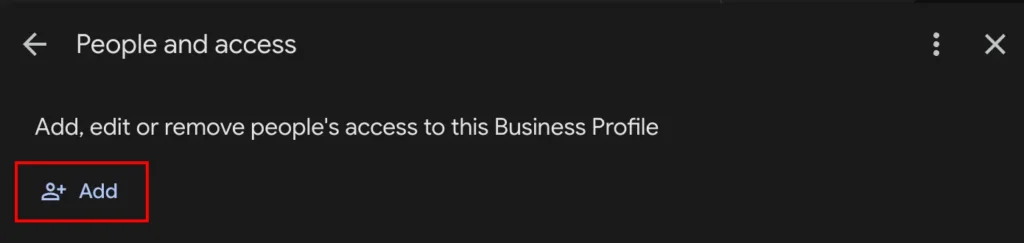
Select People and Access. This shows you everyone who currently has access to the profile. Click Add.
6.
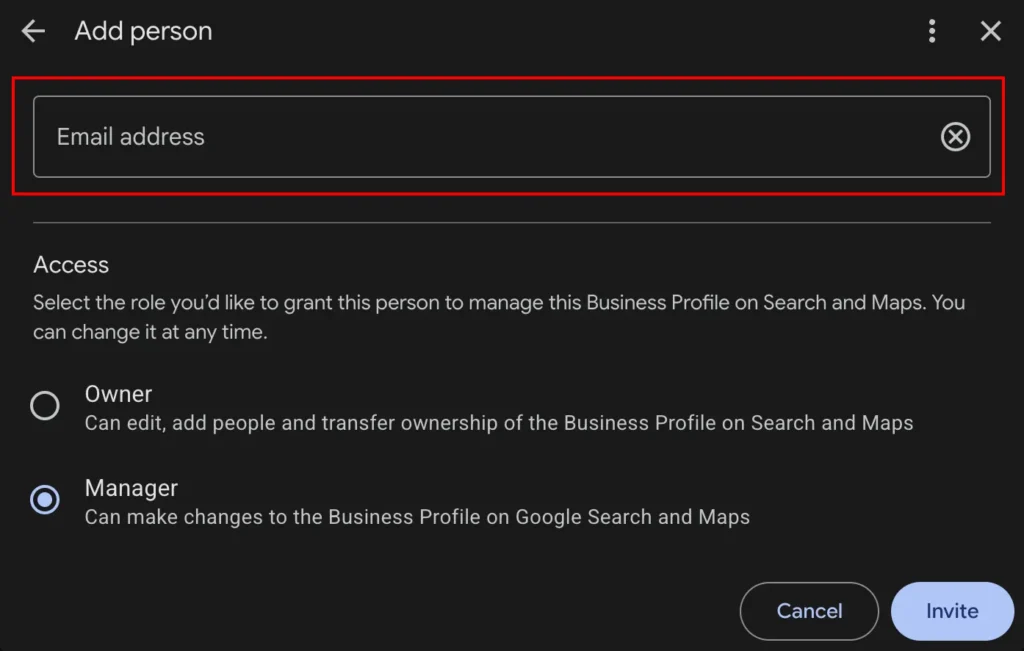
Enter their email address. Type the email address of the person or agency you are inviting. Double-check it before you continue. You do not want to hand profile access to a stranger because of a typo.
7.
Choose their role. Pick Owner or Manager depending on what you agreed, then click Invite.
8.
Confirm they are in. The person you invited will receive an email from Google. Once they accept, they will appear in your People and Access list. It is worth dropping them a quick message to confirm everything is working, and they can see what they need.
That is it. No passwords shared, no security risk, and full visibility of who can touch your profile at any time.
Why not just share your login details?
We get asked this a lot, and the honest answer is that sharing your password creates problems you do not need.
It keeps your business protected. Your Google login often unlocks far more than your Business Profile. Gmail, Google Drive, Google Ads, and more can all be accessed with the same credentials. Granting profile access keeps everything else locked down, and if you ever part ways with an agency, you can revoke their access in seconds rather than scrambling to change passwords everywhere.
It avoids security flags from Google. Google does not like seeing the same account logged in from many different locations and devices. Shared logins can trigger verification checks or even temporary lockouts, which is a headache nobody wants in the middle of a campaign.
It makes life easier for your agency too. When an agency has proper access, they can manage all their client profiles from one place. That means less time faffing about with logins and more time actually improving your listing, responding to reviews and keeping your information fresh.
A quick housekeeping tip
While you are in the People and Access screen, take a moment to review who already has access. It is surprisingly common to find former employees, old agencies or accounts nobody recognises still attached to a profile. If someone no longer needs access, remove them. It takes one click and keeps your profile tidy and secure.
Need a hand with your Google Business Profile?
A well-managed profile can make a real difference to how often local customers find you, how your reviews are handled, and how your business shows up on Maps. If you would like help optimising yours, get in touch with the team at Mushy Media, and we will be happy to talk it through.